Podman
Podman is a daemonless container engine for developing, managing, and running OCI Containers on your Linux System. Containers can either be run as root or in rootless mode. Simply put: alias docker=podman.
Getting Started with Podman
Podman Installation Instructions
{
  sudo apt-get update -qq
  sudo apt-get install -qq -y software-properties-common uidmap
  sudo add-apt-repository -y ppa:projectatomic/ppa
  sudo apt-get update -qq
  sudo apt-get -qq -y install podman
}
Basic Setup and Use of Podman
Podman is a utility provided as part of the libpod library. It can be used to create and maintain containers.
The code samples are intended to be run as a non-root user, and use
sudowhere root escalation is required.
Familiarizing yourself with Podman
sudo su
Running a sample container
This sample container will run a very basic httpd server that serves only its index page.
podman run -dt -p 8080:8080/tcp \
  -e HTTPD_VAR_RUN=/var/run/httpd \
  -e HTTPD_MAIN_CONF_D_PATH=/etc/httpd/conf.d \
  -e HTTPD_MAIN_CONF_PATH=/etc/httpd/conf \
  -e HTTPD_CONTAINER_SCRIPTS_PATH=/usr/share/container-scripts/httpd/ \
  registry.fedoraproject.org/f27/httpd /usr/bin/run-httpd
Trying to pull registry.fedoraproject.org/f27/httpd...
Getting image source signatures
Copying blob 9347d6e9d864 done
Copying blob 2fc5c44251d4 done
Copying blob ff3dab903f92 done
Copying config 18f01f6f77 done
Writing manifest to image destination
Storing signatures
a8b96a4dd87d1b33d8d5f54a8e421b0518b52341d031108ddb21f02f8553725a
Because the container is being run in detached mode, represented by the -d in the podman run command, Podman will print the container ID after it has run. Note that we use port forwarding to be able to access the HTTP server.
Listing running containers
The podman ps command is used to list creating and running containers.
podman ps
CONTAINER ID  IMAGE                                        COMMAND               CREATED        STATUS            PORTS                   NAMES
a8b96a4dd87d  registry.fedoraproject.org/f27/httpd:latest  /usr/bin/run-http...  9 seconds ago  Up 8 seconds ago  0.0.0.0:8080->8080/tcp  jolly_sammet
If you add
-ato thepscommand, Podman will show all containers.
Inspecting a running container
You can inspect a running container for metadata and details about itself. We can even use the inspect subcommand to see what IP address was assigned to the container.
podman inspect -l | grep IPAddress
"SecondaryIPAddresses": null,
"IPAddress": "10.88.0.2",
The
-lis a convenience argument for latest container. You can also use the container’s ID instead of-l.
Testing the httpd server
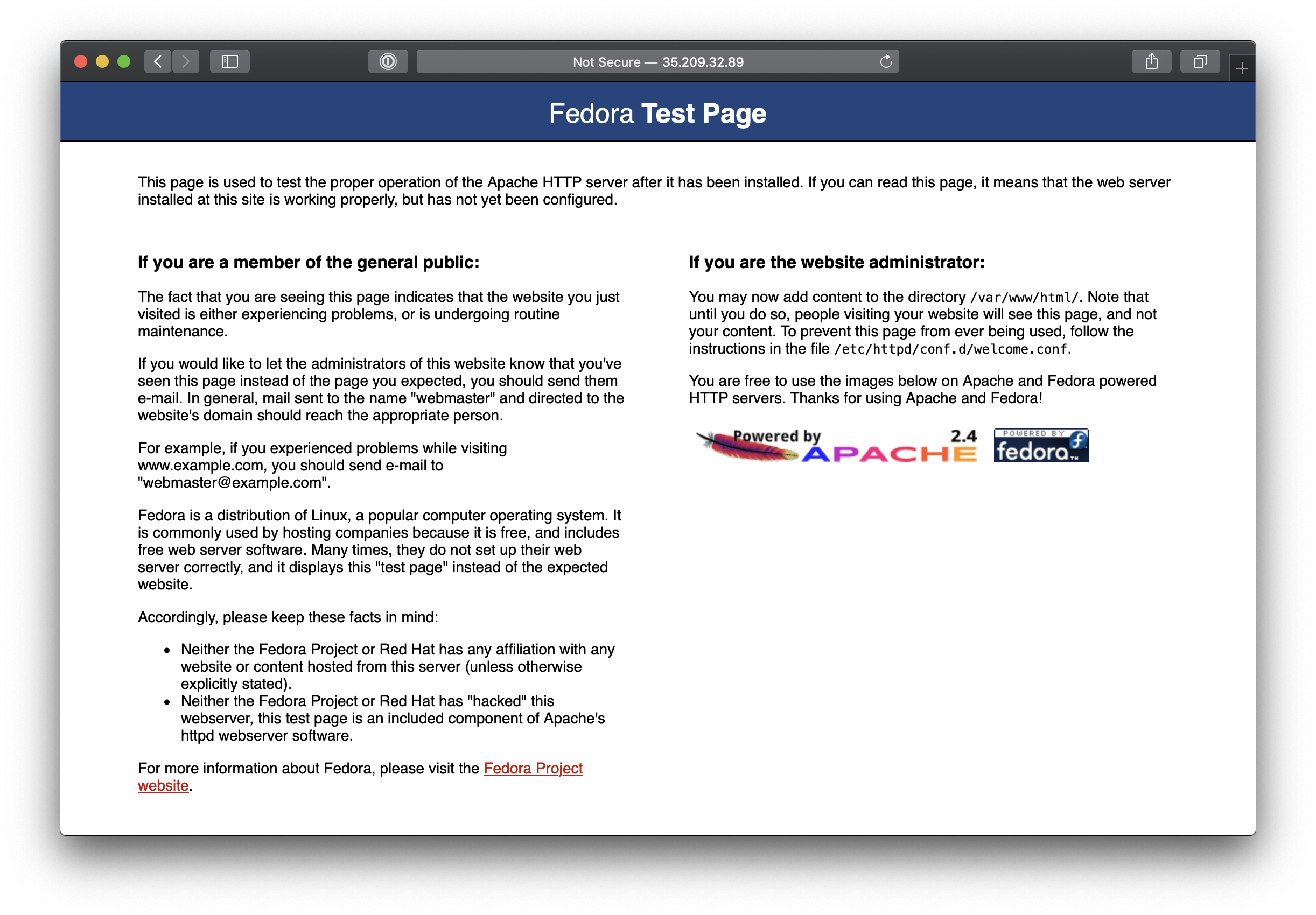
Now that we have the IP address of the container, we can test the network communication between the host operating system and the container using curl. The following command should display the index page of our containerized httpd server.
curl http://10.88.0.2:8080
Viewing the container’s logs
You can view the container’s logs with Podman as well:
podman logs --latest
=> sourcing 20-copy-config.sh ...
=> sourcing 40-ssl-certs.sh ...
AH00558: httpd: Could not reliably determine the server's fully qualified domain name, using 10.88.0.2. Set the 'ServerName' directive globally to suppress this message
[Fri Sep 20 12:04:16.035841 2019] [ssl:warn] [pid 1:tid 139997324978432] AH01909: 10.88.0.2:8443:0 server certificate does NOT include an ID which matches the server name
AH00558: httpd: Could not reliably determine the server's fully qualified domain name, using 10.88.0.2. Set the 'ServerName' directive globally to suppress this message
[Fri Sep 20 12:04:16.111413 2019] [ssl:warn] [pid 1:tid 139997324978432] AH01909: 10.88.0.2:8443:0 server certificate does NOT include an ID which matches the server name
[Fri Sep 20 12:04:16.114372 2019] [lbmethod_heartbeat:notice] [pid 1:tid 139997324978432] AH02282: No slotmem from mod_heartmonitor
[Fri Sep 20 12:04:16.120054 2019] [mpm_event:notice] [pid 1:tid 139997324978432] AH00489: Apache/2.4.33 (Fedora) OpenSSL/1.1.0h-fips configured -- resuming normal operations
[Fri Sep 20 12:04:16.120859 2019] [core:notice] [pid 1:tid 139997324978432] AH00094: Command line: 'httpd -D FOREGROUND'
[Fri Sep 20 12:04:56.641519 2019] [autoindex:error] [pid 27:tid 139996733187840] [client 10.88.0.1:53420] AH01276: Cannot serve directory /var/www/html/: No matching DirectoryIndex (index.html) found, and server-generated directory index forbidden by Options directive
10.88.0.1 - - [20/Sep/2019:12:04:56 +0000] "GET / HTTP/1.1" 403 4650 "-" "curl/7.58.0"
[Fri Sep 20 12:05:11.341869 2019] [autoindex:error] [pid 27:tid 139996716402432] [client 49.206.126.228:64105] AH01276: Cannot serve directory /var/www/html/: No matching DirectoryIndex (index.html) found, and server-generated directory index forbidden by Options directive
49.206.126.228 - - [20/Sep/2019:12:05:11 +0000] "GET / HTTP/1.1" 403 4650 "-" "Mozilla/5.0 (Macintosh; Intel Mac OS X 10_15) AppleWebKit/605.1.15 (KHTML, like Gecko) Version/13.0.1 Safari/605.1.15"
Viewing the container’s pids
And you can observe the httpd pid in the container with top.
podman top -l
USER      PID   PPID   %CPU    ELAPSED           TTY     TIME   COMMAND
default   1     0      0.000   1m18.83311704s    pts/0   0s     httpd -D FOREGROUND
default   22    1      0.000   1m17.83326909s    pts/0   0s     /usr/bin/cat
default   23    1      0.000   1m17.833346746s   pts/0   0s     /usr/bin/cat
default   24    1      0.000   1m17.83342504s    pts/0   0s     /usr/bin/cat
default   25    1      0.000   1m17.833493246s   pts/0   0s     /usr/bin/cat
default   26    1      0.000   1m17.833553905s   pts/0   0s     httpd -D FOREGROUND
default   27    1      0.000   1m17.833632754s   pts/0   0s     httpd -D FOREGROUND
default   28    1      0.000   1m17.833690542s   pts/0   0s     httpd -D FOREGROUND
default   29    1      0.000   1m17.833746557s   pts/0   0s     httpd -D FOREGROUND
panic: error opening "/var/lib/containers/storage/storage.lock"

goroutine 1 [running]:
github.com/containers/libpod/vendor/github.com/containers/storage/pkg/lockfile.(*lockfile).lock(0xc42009cf00, 0x1)
        src/github.com/containers/libpod/vendor/github.com/containers/storage/pkg/lockfile/lockfile_unix.go:107 +0x2cb
github.com/containers/libpod/vendor/github.com/containers/storage/pkg/lockfile.(*lockfile).Lock(0xc42009cf00)
        src/github.com/containers/libpod/vendor/github.com/containers/storage/pkg/lockfile/lockfile_unix.go:130 +0x3f
github.com/containers/libpod/vendor/github.com/containers/storage.(*store).LayerStore(0xc420014fc0, 0x0, 0x0, 0x0, 0x0)
        src/github.com/containers/libpod/vendor/github.com/containers/storage/store.go:754 +0x5f
github.com/containers/libpod/vendor/github.com/containers/storage.(*store).Shutdown(0xc420014fc0, 0x18bca00, 0x0, 0x0, 0x0, 0x0, 0x0)
        src/github.com/containers/libpod/vendor/github.com/containers/storage/store.go:3125 +0x7f
github.com/containers/libpod/libpod.(*Runtime).Shutdown(0xc420461ba0, 0xc420082000, 0x0, 0x0)
        src/github.com/containers/libpod/libpod/runtime.go:1272 +0x1ba
github.com/containers/libpod/libpod.(*Runtime).DeferredShutdown(0xc420461ba0, 0xc420269100)
        src/github.com/containers/libpod/libpod/runtime.go:1237 +0x34
main.topCmd(0x2766fc0, 0x0, 0x0)
        src/github.com/containers/libpod/cmd/podman/top.go:98 +0x290
main.glob..func38(0x2701f60, 0xc4201f5f60, 0x0, 0x1, 0x0, 0x0)
        src/github.com/containers/libpod/cmd/podman/top.go:43 +0x87
github.com/containers/libpod/vendor/github.com/spf13/cobra.(*Command).execute(0x2701f60, 0xc42003a0b0, 0x1, 0x1, 0x2701f60, 0xc42003a0b0)
        src/github.com/containers/libpod/vendor/github.com/spf13/cobra/command.go:826 +0x468
github.com/containers/libpod/vendor/github.com/spf13/cobra.(*Command).ExecuteC(0x27071e0, 0x6, 0x278ea80, 0xc420042000)
        src/github.com/containers/libpod/vendor/github.com/spf13/cobra/command.go:914 +0x306
github.com/containers/libpod/vendor/github.com/spf13/cobra.(*Command).Execute(0x27071e0, 0xc42020a210, 0xc4200460b8)
        src/github.com/containers/libpod/vendor/github.com/spf13/cobra/command.go:864 +0x2b
main.main()
        src/github.com/containers/libpod/cmd/podman/main.go:148 +0x3e
Checkpointing the container
Checkpointing a container stops the container while writing the state of all processes in the container to disk. With this a container can later be restored and continue running at exactly the same point in time as the checkpoint. This capability requires CRIU 3.11 or later installed on the system. To checkpoint the container use:
podman container checkpoint a8b96a4dd87d1b33d8d5f54a8e421b0518b52341d031108ddb21f02f8553725a
Error: failed to checkpoint container a8b96a4dd87d1b33d8d5f54a8e421b0518b52341d031108ddb21f02f8553725a: Checkpoint/Restore requires at least CRIU 31100
Restoring the container
Restoring a container is only possible for a previously checkpointed container. The restored container will continue to run at exactly the same point in time it was checkpointed. To restore the container use:
podman container restore a8b96a4dd87d1b33d8d5f54a8e421b0518b52341d031108ddb21f02f8553725a
Error: failed to restore container a8b96a4dd87d1b33d8d5f54a8e421b0518b52341d031108ddb21f02f8553725a: Checkpoint/Restore requires at least CRIU 31100
After being restored, the container will answer requests again as it did before checkpointing.
curl http://<IP_address>:8080
Migrate the container
To live migrate a container from one host to another the container is checkpointed on the source system of the migration, transferred to the destination system and then restored on the destination system. When transferring the checkpoint, it is possible to specify an output-file.
On the source system:
podman container checkpoint <container_id> -e /tmp/checkpoint.tar.gz
scp /tmp/checkpoint.tar.gz <destination_system>:/tmp
On the destination system:
podman container restore -i /tmp/checkpoint.tar.gz
After being restored, the container will answer requests again as it did before checkpointing. This time the container will continue to run on the destination system.
curl http://<IP_address>:8080
Stopping the container
To stop the httpd container:
podman stop --latest
a8b96a4dd87d1b33d8d5f54a8e421b0518b52341d031108ddb21f02f8553725a
You can also check the status of one or more containers using the ps subcommand. In this case, we should use the -a argument to list all containers.
podman ps -a
CONTAINER ID  IMAGE                                        COMMAND               CREATED        STATUS                     PORTS                   NAMES
a8b96a4dd87d  registry.fedoraproject.org/f27/httpd:latest  /usr/bin/run-http...  2 minutes ago  Exited (0) 11 seconds ago  0.0.0.0:8080->8080/tcp  jolly_sammet
Removing the container
To remove the httpd container:
podman rm --latest
a8b96a4dd87d1b33d8d5f54a8e421b0518b52341d031108ddb21f02f8553725a
You can verify the deletion of the container by running podman ps -a.
podman ps -a
CONTAINER ID IMAGE COMMAND CREATED STATUS PORTS NAMES