Setting up HTTP Load Balancing with Ingress
Background
GKE offers integrated support for two types of cloud load balancing for a publicly accessible application:
- You can create TCP/UDP load balancers by specifying
type: LoadBalanceron a Service resource manifest. Although a TCP load balancer works for HTTP web servers, they are not designed to terminate HTTP(S) traffic as they are not aware of individual HTTP(S) requests. GKE does not configure any health checks for TCP/UDP load balancers. - You can create HTTP(S) load balancers by using an Ingress resource. HTTP(S) load balancers are designed to terminate HTTP(S) requests and can make better context-aware load balancing decisions. They offer features like customizable URL maps and TLS termination. GKE automatically configures health checks for HTTP(S) load balancers.
Deploy a web application
Create a Deployment using the sample web application container image that listens on a HTTP server on port 8080:
kubectl run web --image=gcr.io/google-samples/hello-app:1.0 --port=8080
kubectl run --generator=deployment/apps.v1 is DEPRECATED and will be removed in a future version. Use kubectl run --generator=run-pod/v1 or kubectl create instead.
deployment.apps/web created
Expose your Deployment as a Service internally
Create a Service resource to make the web deployment reachable within your container cluster:
kubectl expose deployment web --target-port=8080 --type=NodePort
service/web exposed
When you create a Service of type NodePort with this command, GKE makes your Service available on a randomly-selected high port number (e.g. 31176) on all the nodes in your cluster.
Verify the Service was created and a node port was allocated:
kubectl get service web
NAME   TYPE       CLUSTER-IP     EXTERNAL-IP   PORT(S)          AGE
web    NodePort   10.7.240.113   <none>        8080:31176/TCP   49s
The node port for the web Service is 31176. Also, note that there is no external IP allocated for this Service. Since the GKE nodes are not externally accessible by default, creating this Service does not make your application accessible from the Internet.
To make your HTTP(S) web server application publicly accessible, you need to create an Ingress resource.
Create an Ingress resource
Ingress is a Kubernetes resource that encapsulates a collection of rules and configuration for routing external HTTP(S) traffic to internal services.
On GKE, Ingress is implemented using Google Cloud Load Balancing. When you create an Ingress in your cluster, GKE creates an HTTP(S) load balancer and configures it to route traffic to your application.
While the Kubernetes Ingress is a beta resource, meaning how you describe the Ingress object is subject to change, the Cloud Load Balancers that GKE provisions to implement the Ingress are production-ready.
The following config file defines an Ingress resource that directs traffic to your web Service:
cat << EOF > basic-ingress.yaml
apiVersion: extensions/v1beta1
kind: Ingress
metadata:
  name: basic-ingress
spec:
  backend:
    serviceName: web
    servicePort: 8080
EOF
Deploy this Ingress resource
kubectl apply -f basic-ingress.yaml
ingress.extensions/basic-ingress created
Once you deploy this manifest, Kubernetes creates an Ingress resource on your cluster. The Ingress controller running in your cluster is responsible for creating an HTTP(S) Load Balancer to route all external HTTP traffic (on port 80) to the web NodePort Service you exposed.
Visit your application
Find out the external IP address of the load balancer serving your application by running:
kubectl get ingress basic-ingress
NAME            HOSTS   ADDRESS          PORTS   AGE
basic-ingress   *       35.244.212.197   80      58s
It may take a few minutes for GKE to allocate an external IP address and set up forwarding rules until the load balancer is ready to serve your application. In the meanwhile, you may get errors such as HTTP 404 or HTTP 500 until the load balancer configuration is propagated across the globe.
Point your browser to the external IP address of your application and see a plain text HTTP response like the following:
curl 35.244.212.197
<!DOCTYPE html>
<html lang=en>
  <meta charset=utf-8>
  <meta name=viewport content="initial-scale=1, minimum-scale=1, width=device-width">
  <title>Error 404 (Not Found)!!1</title>
  <style>
    *{margin:0;padding:0}html,code{font:15px/22px arial,sans-serif}html{background:#fff;color:#222;padding:15px}body{margin:7% auto 0;max-width:390px;min-height:180px;padding:30px 0 15px}* > body{background:url(//www.google.com/images/errors/robot.png) 100% 5px no-repeat;padding-right:205px}p{margin:11px 0 22px;overflow:hidden}ins{color:#777;text-decoration:none}a img{border:0}@media screen and (max-width:772px){body{background:none;margin-top:0;max-width:none;padding-right:0}}#logo{background:url(//www.google.com/images/branding/googlelogo/1x/googlelogo_color_150x54dp.png) no-repeat;margin-left:-5px}@media only screen and (min-resolution:192dpi){#logo{background:url(//www.google.com/images/branding/googlelogo/2x/googlelogo_color_150x54dp.png) no-repeat 0% 0%/100% 100%;-moz-border-image:url(//www.google.com/images/branding/googlelogo/2x/googlelogo_color_150x54dp.png) 0}}@media only screen and (-webkit-min-device-pixel-ratio:2){#logo{background:url(//www.google.com/images/branding/googlelogo/2x/googlelogo_color_150x54dp.png) no-repeat;-webkit-background-size:100% 100%}}#logo{display:inline-block;height:54px;width:150px}
  </style>
  <a href=//www.google.com/><span id=logo aria-label=Google></span></a>
  <p><b>404.</b> <ins>That’s an error.</ins>
  <p>The requested URL <code>/</code> was not found on this server.  <ins>That’s all we know.</ins>
After few minutes
curl 35.244.212.197
Hello, world!
Version: 1.0.0
Hostname: web-55b8c6998d-f2pm4
Configuring a static IP address
When you expose a web server on a domain name, you need the external IP address of an application to be a static IP that does not change.
By default, GKE allocates ephemeral external IP addresses for HTTP applications exposed through an Ingress. Ephemeral addresses are subject to change. For a web application you are planning for a long time, you need to use a static external IP address.
Note that once you configure a static IP for the Ingress resource, deleting the Ingress will not delete the static IP address associated to it. Make sure to clean up the static IP addresses you configured once you no longer plan to use them again.
Reserve a new static IP address
Reserve a static external IP address named web-static-ip by running:
gcloud compute addresses create web-static-ip --global
Created [https://www.googleapis.com/compute/v1/projects/espblufi-android/global/addresses/web-static-ip].
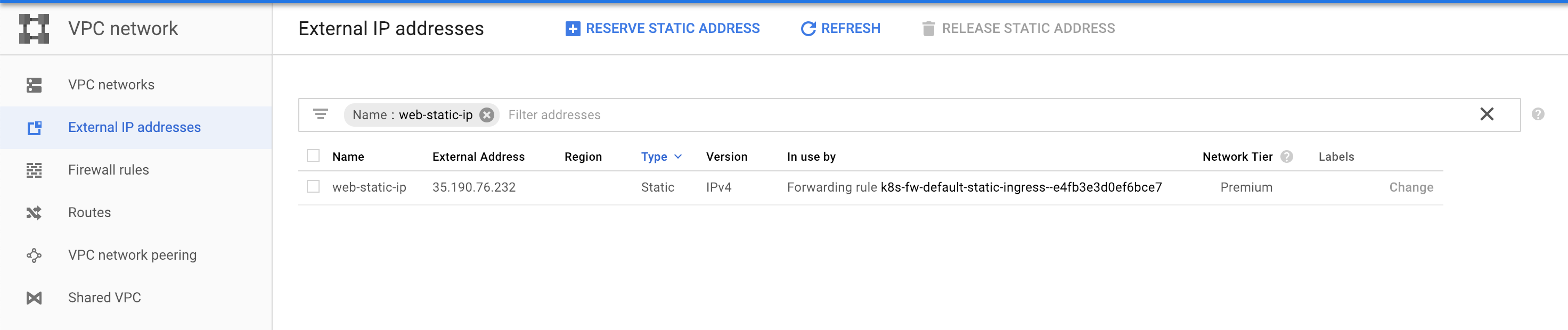
Now you need to configure the Ingress resource to use the reserved IP address.
cat << EOF > static-ingress.yaml
apiVersion: extensions/v1beta1
kind: Ingress
metadata:
  name: static-ingress
  annotations:
    kubernetes.io/ingress.global-static-ip-name: "web-static-ip"
spec:
  backend:
    serviceName: web
    servicePort: 8080
EOF
kubectl create -f static-ingress.yaml
ingress.extensions/static-ingress created
Run kubectl get ingress static-ingress and wait until the IP address of your application changes to use the reserved IP address of the web-static-ip resource.
kubectl get ingress static-ingress
NAME             HOSTS   ADDRESS         PORTS   AGE
static-ingress   *       35.190.76.232   80      2m
It may take a couple of minutes to configure the load balancer and propagate the load balancing rules across the globe. Once this operation completes, the GKE releases the ephemeral IP address previously allocated to your application.
curl 35.190.76.232
<!DOCTYPE html>
<html lang=en>
  <meta charset=utf-8>
  <meta name=viewport content="initial-scale=1, minimum-scale=1, width=device-width">
  <title>Error 404 (Not Found)!!1</title>
  <style>
    *{margin:0;padding:0}html,code{font:15px/22px arial,sans-serif}html{background:#fff;color:#222;padding:15px}body{margin:7% auto 0;max-width:390px;min-height:180px;padding:30px 0 15px}* > body{background:url(//www.google.com/images/errors/robot.png) 100% 5px no-repeat;padding-right:205px}p{margin:11px 0 22px;overflow:hidden}ins{color:#777;text-decoration:none}a img{border:0}@media screen and (max-width:772px){body{background:none;margin-top:0;max-width:none;padding-right:0}}#logo{background:url(//www.google.com/images/branding/googlelogo/1x/googlelogo_color_150x54dp.png) no-repeat;margin-left:-5px}@media only screen and (min-resolution:192dpi){#logo{background:url(//www.google.com/images/branding/googlelogo/2x/googlelogo_color_150x54dp.png) no-repeat 0% 0%/100% 100%;-moz-border-image:url(//www.google.com/images/branding/googlelogo/2x/googlelogo_color_150x54dp.png) 0}}@media only screen and (-webkit-min-device-pixel-ratio:2){#logo{background:url(//www.google.com/images/branding/googlelogo/2x/googlelogo_color_150x54dp.png) no-repeat;-webkit-background-size:100% 100%}}#logo{display:inline-block;height:54px;width:150px}
  </style>
  <a href=//www.google.com/><span id=logo aria-label=Google></span></a>
  <p><b>404.</b> <ins>That’s an error.</ins>
  <p>The requested URL <code>/</code> was not found on this server.  <ins>That’s all we know.</ins>
After a few minutes
curl 35.190.76.232
Hello, world!
Version: 1.0.0
Hostname: web-55b8c6998d-f2pm4
Serving multiple applications on a Load Balancer
You can run multiple services on a single load balancer and public IP by configuring routing rules on the Ingress. By hosting multiple services on the same Ingress, you can avoid creating additional load balancers (which are billable resources) for every Service you expose to the Internet.
Create another web server Deployment with the version 2.0 version of the same web application:
kubectl run web2 --image=gcr.io/google-samples/hello-app:2.0 --port=8080
kubectl run --generator=deployment/apps.v1 is DEPRECATED and will be removed in a future version. Use kubectl run --generator=run-pod/v1 or kubectl create instead.
deployment.apps/web2 created
Then, expose the web2 Deployment internally to the cluster on a NodePort Service called webs:
kubectl expose deployment web2 --target-port=8080 --type=NodePort
service/web2 exposed
The following manifest describes an Ingress resource that:
- routes the requests with path starting with
/v2/to theweb2Service - routes all other requests to the
webService
cat << EOF > fanout-ingress.yaml
apiVersion: extensions/v1beta1
kind: Ingress
metadata:
  name: fanout-ingress
spec:
  rules:
    - http:
        paths:
          - path: /*
            backend:
              serviceName: web
              servicePort: 8080
          - path: /v2/*
            backend:
              serviceName: web2
              servicePort: 8080
EOF
Deploy this manifest
kubectl create -f fanout-ingress.yaml
ingress.extensions/fanout-ingress created
Find out the public IP address of the cluster.
kubectl get ingress fanout-ingress
NAME             HOSTS   ADDRESS        PORTS   AGE
fanout-ingress   *       35.190.66.66   80      47s
It may take a few minutes for GKE to allocate an external IP address and prepare the load balancer. In the meanwhile, you may get errors like HTTP 404 and HTTP 500 until the load balancer is ready to serve the traffic.
Then visit the IP address to see that both applications are reachable on the same load balancer:
- Visit
http://<IP_ADDRESS>/and note that the response contains Version:1.0.0(as the request is routed to thewebService) - Visit
http://<IP_ADDRESS>/v2/and note that the response contains Version:2.0.0(as the request is routed to theweb2Service)
curl http://35.190.66.66/
Hello, world!
Version: 1.0.0
Hostname: web-55b8c6998d-f2pm4
curl http://35.190.66.66/v2/
Hello, world!
Version: 2.0.0
Hostname: web2-75cd47646f-wrlrx
The only supported wildcard pattern matching for the path field on GKE Ingress is through the * character. For example, you can have rules with path fields like /* or /foo/bar/*. Refer to the URL Maps documentation for the path limitations.
Remarks
Services exposed through an Ingress must serve a response with HTTP 200 status to the GET requests on / path. This is used for health checking. If your application does not serve HTTP 200 on /, the backend will be marked unhealthy and will not get traffic.
Ingress supports more advanced use cases, such as:
- Name-based virtual hosting: You can use Ingress to reuse the load balancer for multiple domain names, subdomains and to expose multiple Services on a single IP address and load balancer.
- HTTPS termination: You can configure the Ingress to terminate the HTTPS traffic using the Cloud Load Balancer.
Always modify the properties of the Load Balancer via the Ingress object. Making changes directly on the load balancing resources may get lost or overridden by the Ingress controller.
When an Ingress is deleted, the Ingress controller cleans up the associated resources (except reserved static IP addresses) automatically.
Cleaning up
Delete the Ingress
This deallocates the ephemeral external IP address and the load balancing resources associated to your application:
kubectl delete ingress basic-ingress
ingress.extensions "basic-ingress" deleted
kubectl delete ingress fanout-ingress
ingress.extensions "fanout-ingress" deleted
Delete the static IP address
gcloud compute addresses delete web-static-ip --global
The following global addresses will be deleted:
 - [web-static-ip]

Do you want to continue (Y/n)?  Y

Deleted [https://www.googleapis.com/compute/v1/projects/espblufi-android/global/addresses/web-static-ip].